 On screen
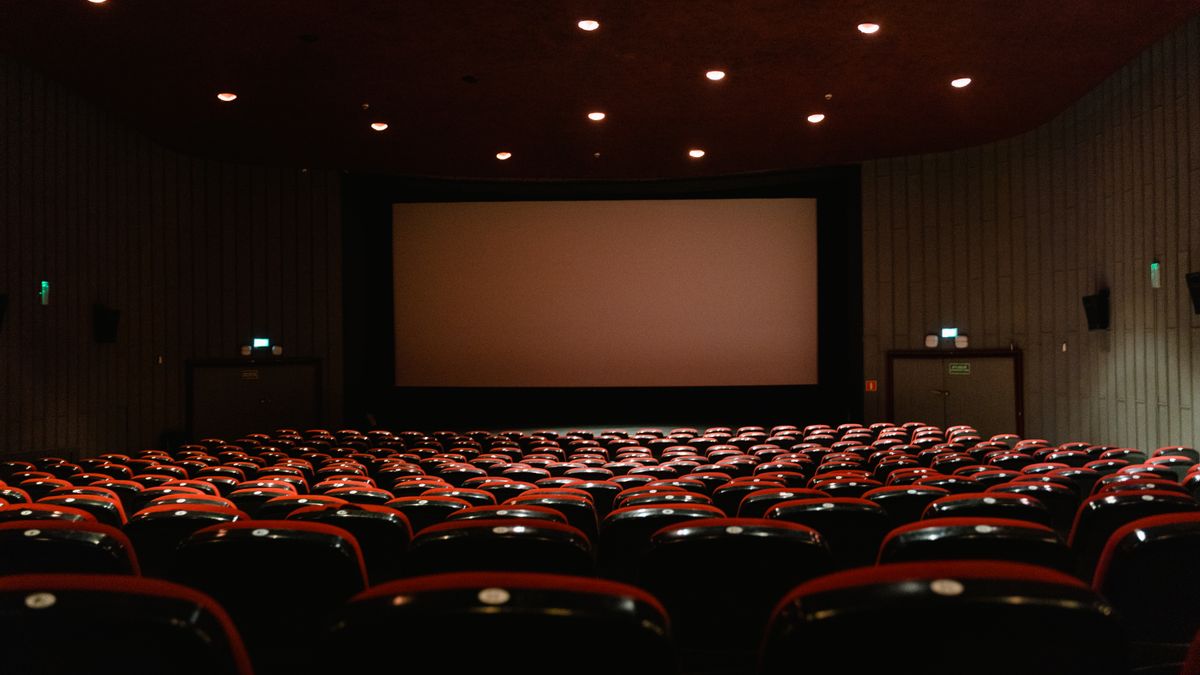
A theater lobby is a different screen environment from a waiting room. Some guests are in a ticket line, some are in a concession line, and some have bought tickets and have time before the next showing. A screen that works for all three has to be readable at a glance and clear about what to do next.
This guide is for owners and managers who already have screens in the lobby and want to put them to better use. It covers what to show, how in-house promotions fit around other content, and how to keep everything consistent with your brand.
What should a movie theater lobby screen be doing?
Start with the moment, not the content. A guest in a queue has a few minutes and a decision coming up. A guest waiting for a showing has more time and less urgency. A guest walking toward the auditoriums needs directions and a reason to stop at the concession stand on the way.
- In the ticket line: showtimes, formats, membership invitations and anything that saves a question at the counter.
- In the concession line: combos and add-ons, so the order is decided before the guest reaches the register.
- In the waiting area: upcoming releases, event nights, private rental and party information.
- Near the auditorium hallway: simple wayfinding and a last pre-show snack reminder.
If you are unsure which screens see which moment, walk the lobby at a busy time and note where people stand and look. The post on how to audit the screens in your business gives a simple way to do this.
Five movie theater lobby screen ideas to start with
1. Concession combos and pre-show snack reminders
This is the most direct use of a lobby screen, and the idea behind cinema concession screen content: show the food, name the combo, and show the price you already charge. Use real photos of your own popcorn, drinks and candy rather than generic graphics. Keep to one or two combos per slide so the line can read it before reaching the counter.
A short reminder works in the waiting area too: something like "Grab snacks before the lights go down." It costs nothing to test and is easy to change if a combo does not move.
2. A membership or loyalty invitation
Guests in line are a natural audience for a membership offer because they are already buying. Keep the slide to the benefit, the plain way to join, and one call to action, such as "Ask at the counter" or a QR code to your sign-up page. Avoid listing every program term on screen; send the details to your website.
3. A private rental and birthday-party booking prompt
A private rental promotion screen reaches the people most likely to know someone planning an event: parents waiting during a kids' showing, groups who came together, and regulars. Show what a rental covers in your theater, the kinds of events you host, and exactly how to inquire. If you have a booking page, put the short address or a QR code on the slide. Do not show pricing unless you are ready to keep it current.
4. An upcoming-release calendar
A simple calendar of coming-soon titles gives waiting guests something to read and gives you a reason for them to return. A text-only list with release dates is the safest starting point. Add trailer clips or poster art only after you have confirmed what you are cleared to show (see the section on studio rules below).
5. Kids' summer series and special event nights
Recurring programming, such as a morning family series or a themed night, is easier to promote with a repeating slide than with one-off flyers. Show the day, the time, the title or theme, and how to get tickets. When the series ends, remove the slide the same day so the lobby does not advertise something that has passed.
Which idea belongs on which screen?
| Location | Guest moment | Content that fits |
|---|---|---|
| Above ticket counter | Waiting to buy | Showtimes, membership invitation |
| Above concession stand | Deciding what to order | Combos, add-ons, pre-show reminder |
| Seating or waiting area | Waiting for a showing | Release calendar, event nights, private rental prompt |
| Hallway to auditoriums | Moving | Wayfinding, last snack reminder |
How do in-house promotions fit between ads?
Many venues run a mix: their own slides plus other content. If you use an ad-supported setup, your own promotions need a defined place in the mix so they do not get lost.
As a reference point, CETV Now is a self-install, plug-in digital out-of-home (DOOH) advertising network. DOOH means advertising shown on screens in public or commercial places. A small media-player device plugs into a screen a venue already owns, and venues can run their own promotions, menu items, events and branding between third-party ads, managed from one web dashboard. Host venues receive the device and ad-supported programming free, with no monthly cost. See how ad-supported signage works for the model in plain terms.
Whether a movie theater can join as a host has not been confirmed on this page, so ask before planning around it. CETV Now also publishes a page on media networks for movie theaters and a page on movie theater marketing ideas, which are worth reading for context.
A simple order for your own slides
- 1Put the highest-value, time-sensitive item first, such as tonight's event or a combo that ends soon.
- 2Follow with standing offers: membership, private rentals.
- 3Keep release calendars and event series in rotation but refresh them on a set day each week.
- 4Retire anything out of date the same day.
What about trailers, posters and studio rules?
Studio and distributor materials usually come with conditions on how, where and when they can be shown. Those conditions vary, and this page cannot tell you what yours say. Before you show a trailer clip, key art or a poster on a lobby screen, check your distribution agreements or ask the studio's representative what is allowed in a lobby setting.
- Keep a short list of materials you have confirmed as cleared, with the date you checked.
- Use text and your own photography where you are unsure.
- Check whether a release date or title can be shown before it is publicly announced.
- Do not assume that material approved for the auditorium is approved for lobby screens.
How do you keep lobby content on-brand?
Lobby screens fall out of step with the rest of a brand when different staff add slides with different fonts, colors and tone. A short standard prevents most of that.
- Choose two fonts and a small color set and use only those.
- Use one photo style, ideally your own.
- Write in the voice of your signage at the counter: short, direct, no all-caps shouting.
- Name one person who approves new slides.
- Keep text large enough to read from the back of the queue, and limit each slide to one idea.
Scheduling matters as much as design. A digital signage content management system (CMS) is the software used to upload, schedule and change screen content; the CMS glossary page explains it in detail. CETV Now's content control tools include automated scheduling of channel changes, so you can set different content for different parts of the day from one place.
Avoid the common mistakes
The usual problems are too much text, outdated promotions and screens that no one owns. The post on digital signage mistakes small businesses make covers each one with a fix.
What should you do next?
Pick two lobby screens and assign each one a job: one for the concession line, one for the waiting area. Draft three slides for each using the ideas above, confirm what you are cleared to show, and review the results after a few weeks by looking at what guests actually ask about at the counter. No promotion is guaranteed to change sales.
If you want to know whether your theater could use an ad-supported setup, or you operate other venues that fall in CETV Now's listed categories, see the venue partners page or contact the team at (833) 807-1500 or info@cetvnow.com. For similar entertainment spaces, you can also compare the family entertainment center guide and the bowling alley guide.